Presentations
Build a slide deck from your analysis, edit and brand it, then present it, publish it as a link or download it as PowerPoint or PDF.
Presentations turns an analysis into a slide deck. Skimle builds a first version from your categories, summaries and quotes, and you edit it, apply your brand, and share it as a public link, a PowerPoint file or a PDF. Slides stay linked to the project, so you can refresh them when the analysis changes.
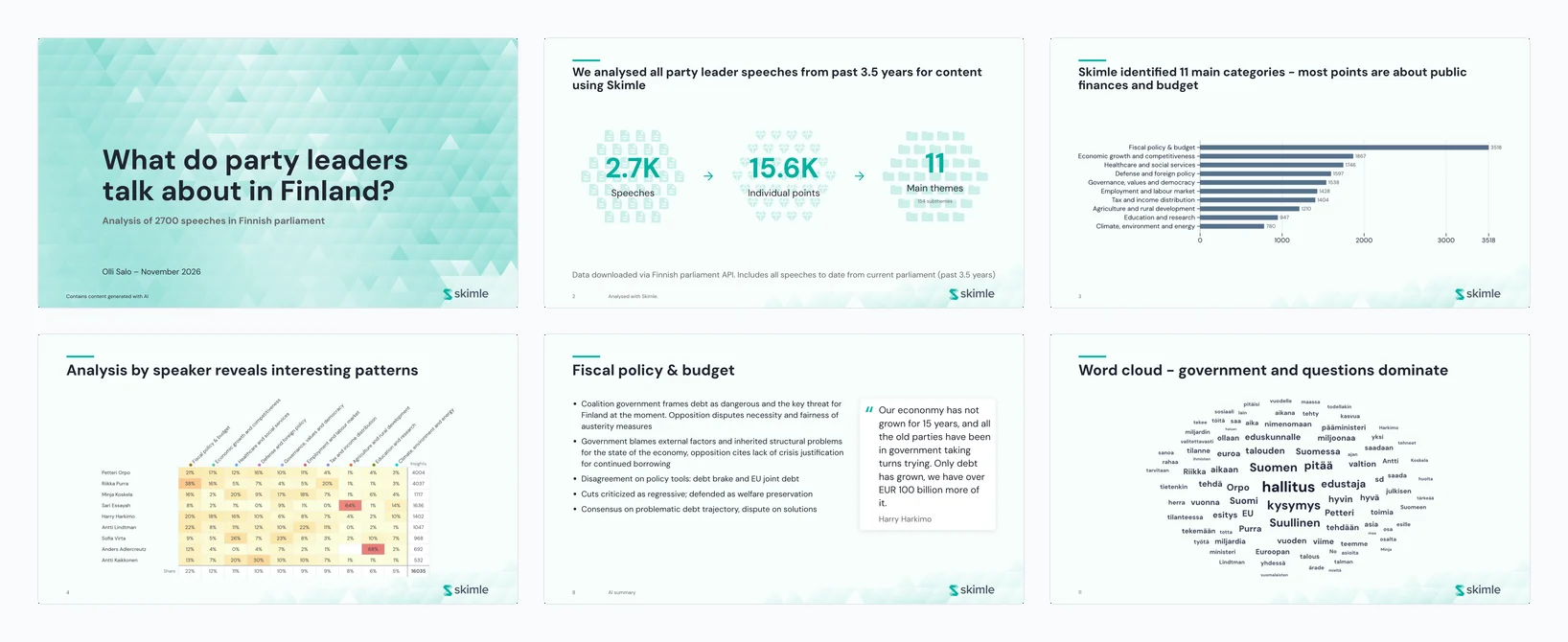
You find Presentations in the Export section of your project. For an example, see the published presentation What do party leaders talk about in Finland?.
Before you start
A default presentation is built from what an analysis found, so the project needs at least one analysis with categories or quotes. Any analysis works, whether it uses predefined categories or is an agentic analysis.
Theme names and summaries come from the analysis. Merge, rename and check your categories in the categories view first, and add metadata if you want charts that compare groups.
Create a presentation
Open Presentations and select New presentation. The dialog asks for:
- Name: the name shown in the presentation list, for example "Findings for the board".
- Covers: the whole project or one analysis. This cannot be changed later.
- Language: the language of the titles and labels Skimle adds to slides. Quotes and insights stay in their original language. This cannot be changed later.
- Start from: Default builds sections, charts and slides from the data. Blank creates an empty presentation that you fill with saved items.
The Auto-generate descriptions setting writes a description for each insight, category or note you add. You can change it later under AI settings in the presentation.
What a default presentation contains
A default presentation typically includes:
- A title slide with the project name, your name and the date.
- Data at a glance: the number of documents, insights and themes behind the analysis.
- Main themes and Insights per category: the themes ranked by how many insights they hold.
- Section dividers that group the theme slides.
- One slide per theme, labelled AI summary, with the theme's summary as bullets and attributed quotes beside it.
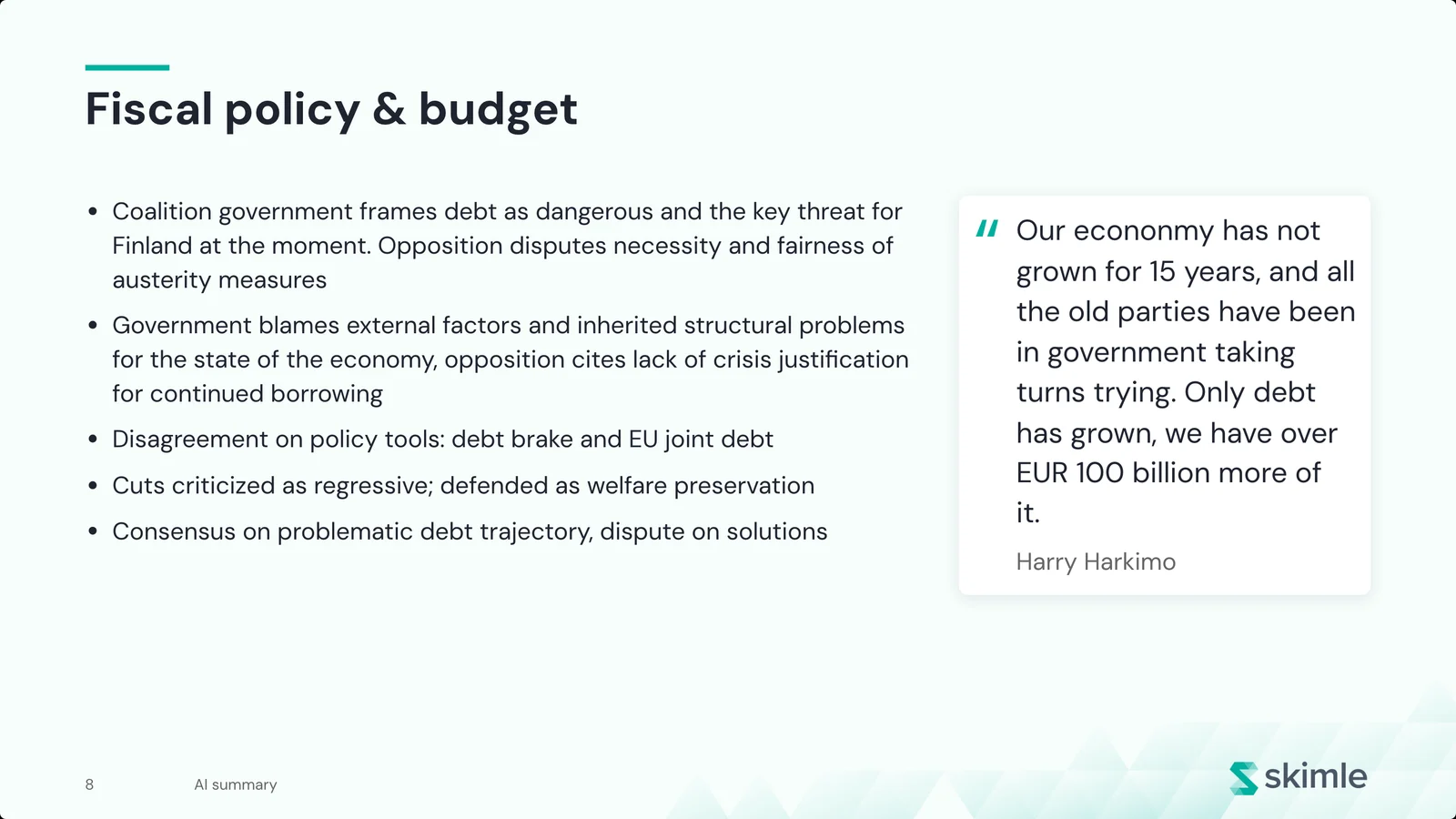
The counts on chart slides are coded insights, not people. A theme slide can show how many documents mention the theme, for example "Mentioned in 28 of 39 documents".
Edit slides
- Text: click a title or text to edit it. Edited slides are marked, so you can tell your wording from the generated text.
- Slide options: on a theme slide, show or hide the description, quote marks and quote sources, and use Choose quotes to pick the quotes. Two quotes fit best on one slide; more continue on the next slide.
- Chart slides: use Choose themes or Choose categories to set which categories appear. They are shown largest first.
- Add slide: add a blank text slide, a quotes slide with quotes from across the project, a section divider, or a saved item.
- Outline: drag slides to reorder them, add sections, and remove a section with or without its slides. Switch between list and grid view to see the whole presentation.
Most edits can be undone. Use Duplicate presentation to make a shorter version without changing the original.
Save items for presentations
Select the star on an insight, a category or a note, or select Save for Presentations on a chart in Visualisations. The item is saved to the project and can be added to one or more presentations from Add slide.
Charts are saved as pictures of how you set them up. If the data behind a chart changes, its slides warn you, and you save the chart again from Visualisations to update it.
Apply a brand
Team owners can set a presentation brand that every presentation in the team uses:
- Colours: accent, text and page colour.
- Fonts: heading and body fonts, with separate choices for Latin, Chinese, Japanese and Korean, and Arabic scripts.
- Logo: an uploaded logo, its corner and its size.
- Background: a generated triangle pattern (with Regenerate and an opacity setting), an uploaded image, a plain colour, or none. You can also choose whether body slides show a faded background and whether slides are numbered.
A single presentation can override any of these for itself. Use the team brand removes the override.
Keep slides up to date
When the source behind a slide changes, for example after you add documents or merge categories, the slide is marked Out of date. Refresh out of date updates all of them at once.
Refreshing replaces a slide's title and text with what the source says now. If you have edited a slide, Skimle asks before refreshing it. A slide whose source was deleted keeps the version that was saved.
Present, publish or download
| Option | What it does |
|---|---|
| Present | Opens a full-screen presenter view in the browser. |
| Publish | Creates a public link that anyone can open without a Skimle account. |
| Download | Saves the presentation as a PowerPoint file, rendered from the pages you see in the editor. |
| Opens the print dialog. Choose Save as PDF and landscape orientation. |
Publish a link
When you publish, choose how the link updates:
- Update the link automatically: your edits reach the link within a minute.
- Update the link when I publish again: the link shows a fixed version until you select Publish again.
The publish panel shows whether the link is up to date. Stop sharing turns the link off for everyone. If you publish again later, you get a new link.
Publishing needs permission to share and export the project. A team that does not allow outside members cannot publish public links. Anyone with the link can view the presentation, so publish only material you have the right to share, and anonymise documents that contain personal details.
For a long-form written report instead of slides, use Quick export in Data export to export a Word report.
Work together
Several people can work on the same presentation. If a colleague changes it while you have it open, your view picks up their changes, and a link set to update automatically picks them up too.