Adding custom metadata fields
How to add custom metadata fields to your project.
Metadata fields let you attach structured information to each document in your project, such as participant demographics, interview dates, or organisational details. You can add metadata manually, import it from a spreadsheet, or let AI generate it automatically.
The metadata editor
Open the Metadata section from the project navigation. It shows a spreadsheet-like table with documents as rows and metadata fields as columns. The first columns display each document's reference number and name.
You can edit any cell directly by clicking on it. Changes are saved automatically.

Adding AI-generated metadata fields
To add a new metadata field:
- Click Add new metadata fields in the toolbar.
- Give the field a name (e.g. "Gender", "Age group", "Region").
- Add a description that explains what the field represents. The AI uses this description to decide what to extract, so be specific.
- Choose a value type (text, number, date, or URL).
- Enable AI generation to have Skimle fill in values automatically.
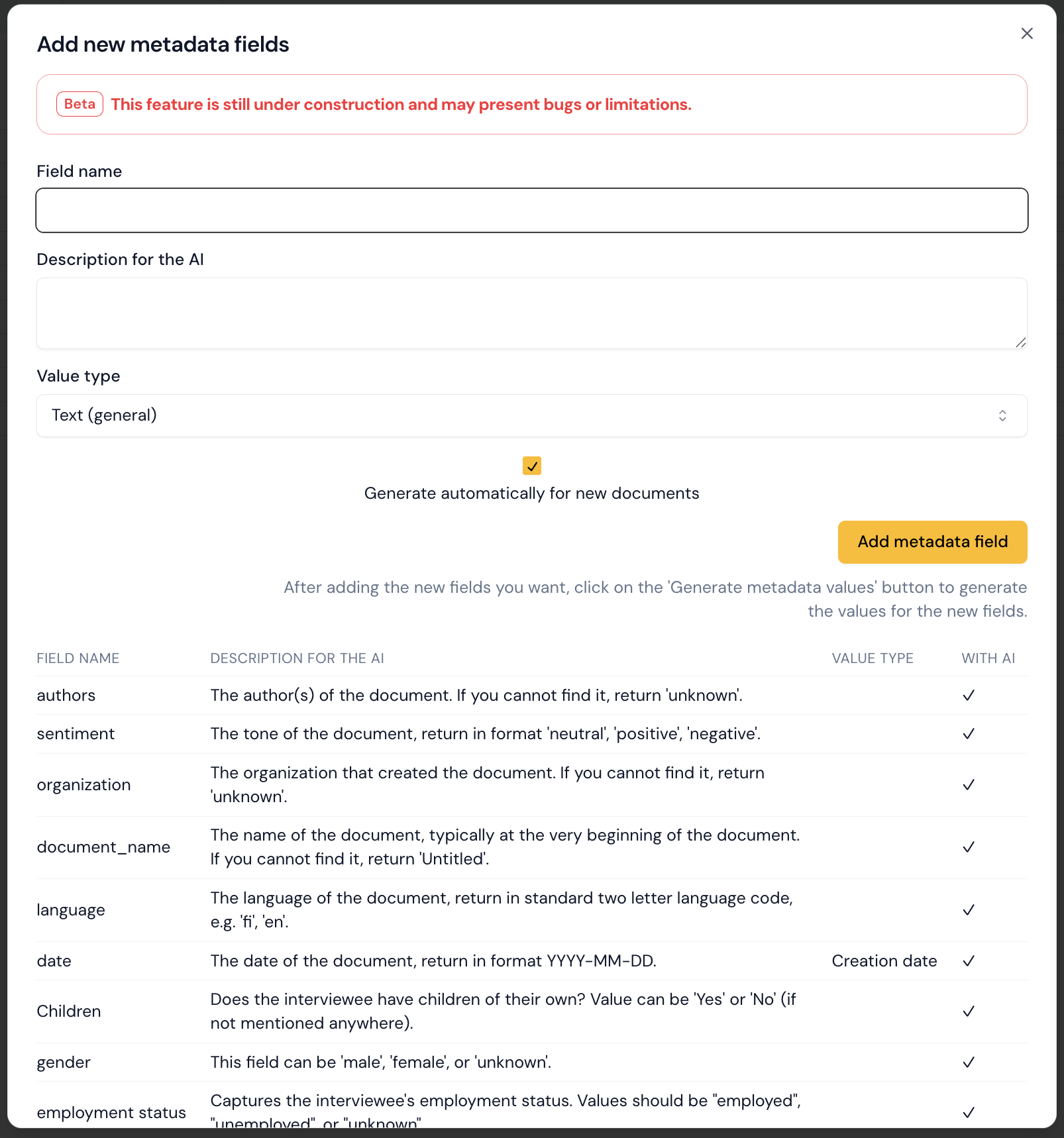
When AI generation is enabled, Skimle searches each document for relevant information and uses an LLM to extract the appropriate value. You can review and edit the generated values afterwards.
Please note that to start metadata generation, you need to scroll down to the bottom of the dialogue and click the Generate metadata values button.
You can add multiple fields at once before saving.
Importing metadata from a spreadsheet
If you already have metadata in a CSV or Excel file, you can import it directly:
- Click the Import button in the toolbar.
- Upload your CSV or Excel file.
- Skimle matches rows to documents by their reference number or document name.
- Preview the changes: new fields, updated cells, and any deletions.
- Confirm to apply the changes.
The import creates new metadata fields automatically if your spreadsheet contains columns that do not yet exist in the project.
Editing metadata manually
Click any cell in the metadata editor to type or change a value.
One neat trick is to export metadata as an Excel file, edit the values (and add new columns if needed), and then import back into Skimle.
Changing metadata field types
You can change the value type of a metadata field by clicking on the field name in the header row of the table displaying all metadata values.
It can be useful to change fields to specific type, such as numbers or dates. Please note that some value types are unique (e.g. there can be only one Author field per project).

System metadata
Some metadata fields are added automatically when you upload documents:
- Original filename — the name of the uploaded file (read-only).
- Document name — an editable display name for the document.
- Creation date — the date the document was created, if available.
- Authors and Organisation — extracted from the document (if present).
System metadata fields cannot generally be deleted, but most can be edited.
Once you have metadata in place, you can use it for segmentation and comparative analysis, view it in Visualisations, or include metadata columns in the table view.