Working with insights
View, edit, move, and manually add insights extracted from your documents.
Insights are the core building blocks of your analysis, and generally referred to with a diamond icon. Each insight is a document-specific observation extracted by AI during analysis, backed by one or more verbatim quotes from the source text. Insights are assigned to categories, forming the thematic structure of your project.
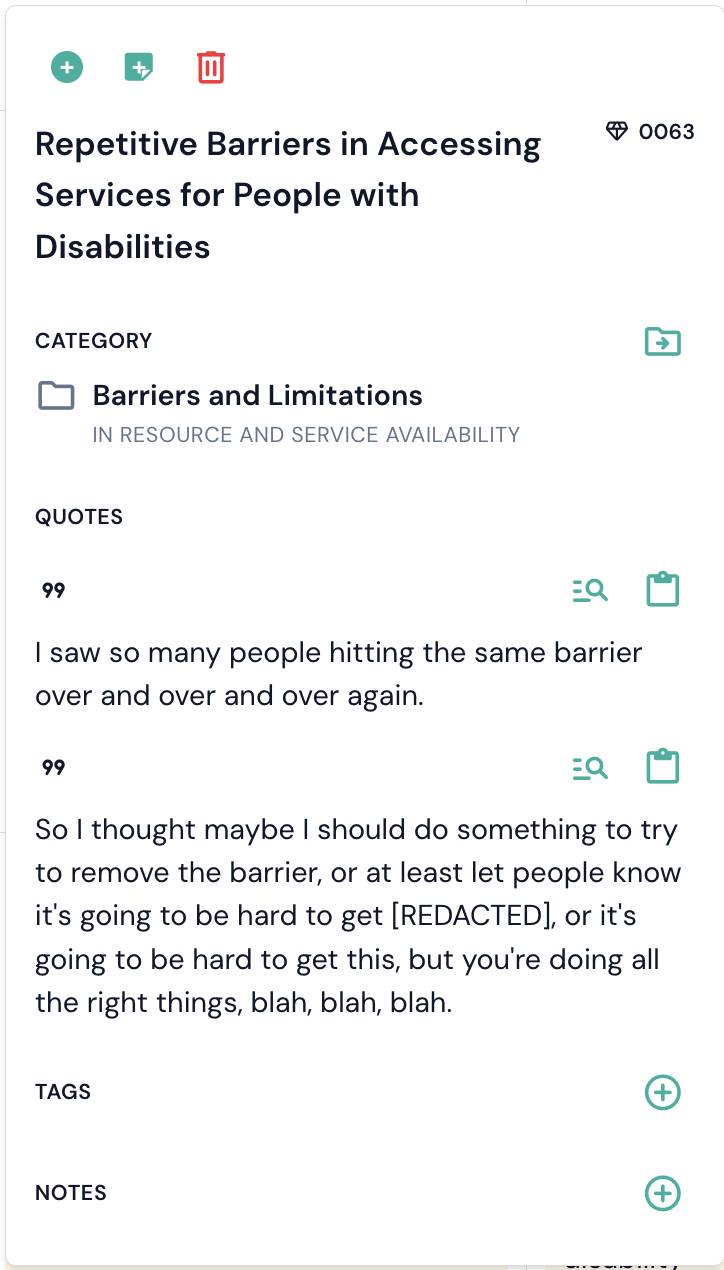
Every insight has a unique reference number, displayed next to a diamond icon, that makes it easy to identify across views.
Viewing insights
Insights appear in several places throughout Skimle:
- Table view — insights appear as cells at the intersection of documents (rows) and categories (columns). Click a cell to see the insight text and quotes.
- Document view — the sidebar lists all insights extracted from the current document. Quotes are highlighted inline in the document text; click a highlight to jump to the corresponding insight.
- Category tree — click a category in the categories view to see related insights on the right-hand side.
- AI chat — insights are used in the chat to refer to data that the AI uses as evidence to its conclusions.
In any of these views, clicking an insight opens the insight popup, which shows the full insight text, its reference number, all associated quotes, the categories it belongs to, and any tags or notes attached to it.
Editing insights
You can edit an insight's label directly in the action panel by clicking on its text. Changes are saved automatically. The underlying quotes remain unchanged — editing the label only affects how the insight is described, not the quoted source material.
Moving insights to a different category
Each insight can belong to one or more categories. There are two ways to change where one sits, and they do slightly different things.
From the insight's own panel
- Click the insight to open the pop-up panel.
- Click the Move to category icon next to the category label.
- Select the target category from the list.
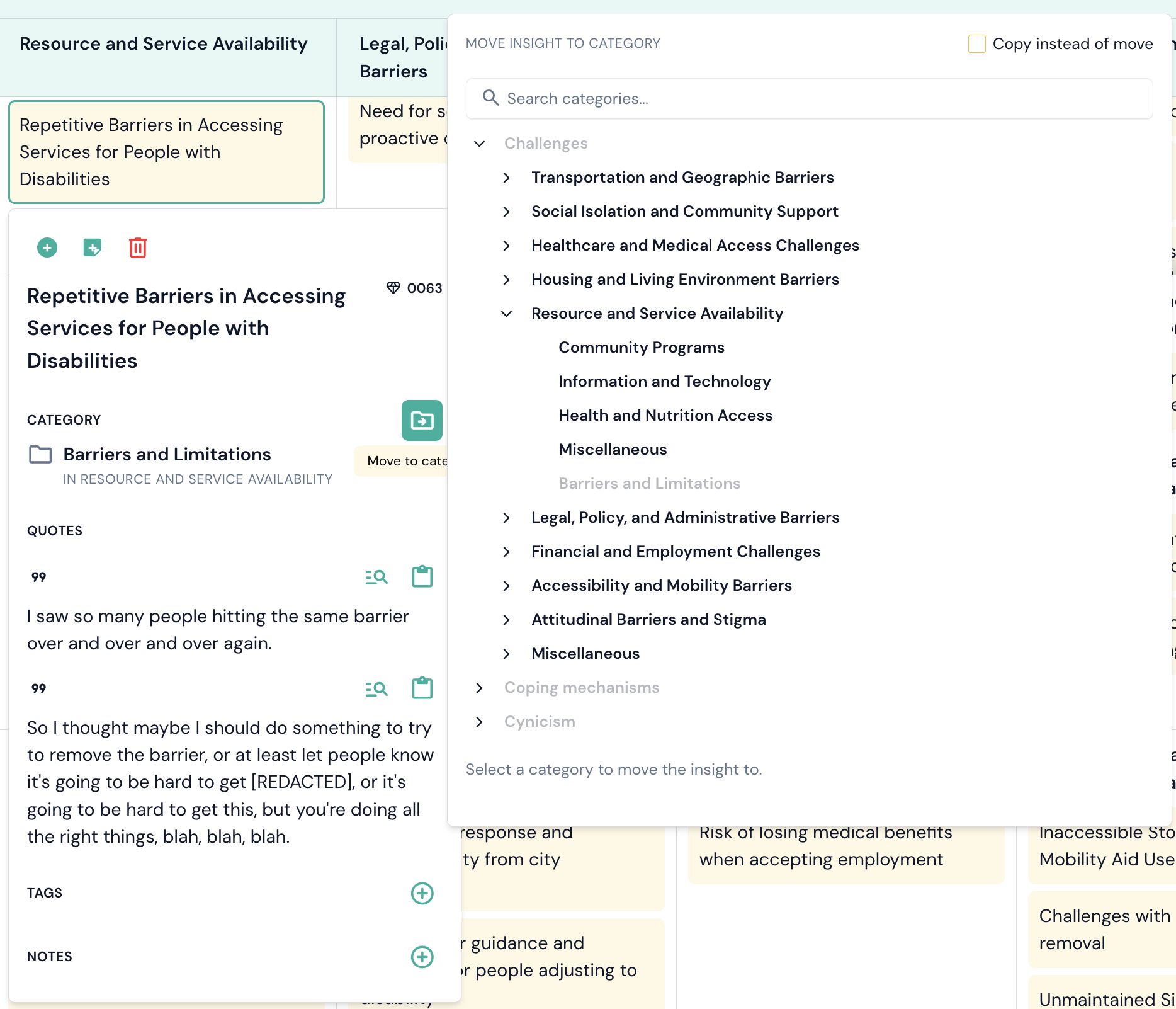
This moves the insight wholesale: if it belonged to several categories, it is removed from all of them and placed in the target.
By dragging it onto the category tree
In the categories view, drag any row of the Insights & quotes card onto a category in the tree on the left.
A dialog opens showing the insight, where it is coming from, and where it is going. You can change the destination there, so a drag that lands on the wrong row does not have to be started again. Then choose:
- Move - the insight leaves the category you dragged it out of and lands in the target. Any other categories it belongs to are left alone.
- Copy - the insight stays where it was and is added to the target as well.
Copying is how an insight comes to belong to more than one category. A copied insight is counted in both categories everywhere in Skimle, including the charts.
A category that already holds the insight will refuse the drop rather than do nothing silently.
Note that Skimle does not mix insights and subcategories under the same parent. If you drop an insight onto a category that has subcategories, it is filed in that category's Uncategorised subcategory, and the dialog tells you so before you commit.
Adding insights manually
You can create new insights directly from the document view.
Manually added insights are automatically given the "Manually added" tag so you can distinguish them from AI-generated insights.
Deleting insights
To delete an insight, open its pop-up and click the trashcan icon. Deleting an insight removes it and all its quote links from the project. Currently, this action cannot be undone.