Your first project
An end-to-end walkthrough of creating and analyzing your first Skimle project.
Create a new project
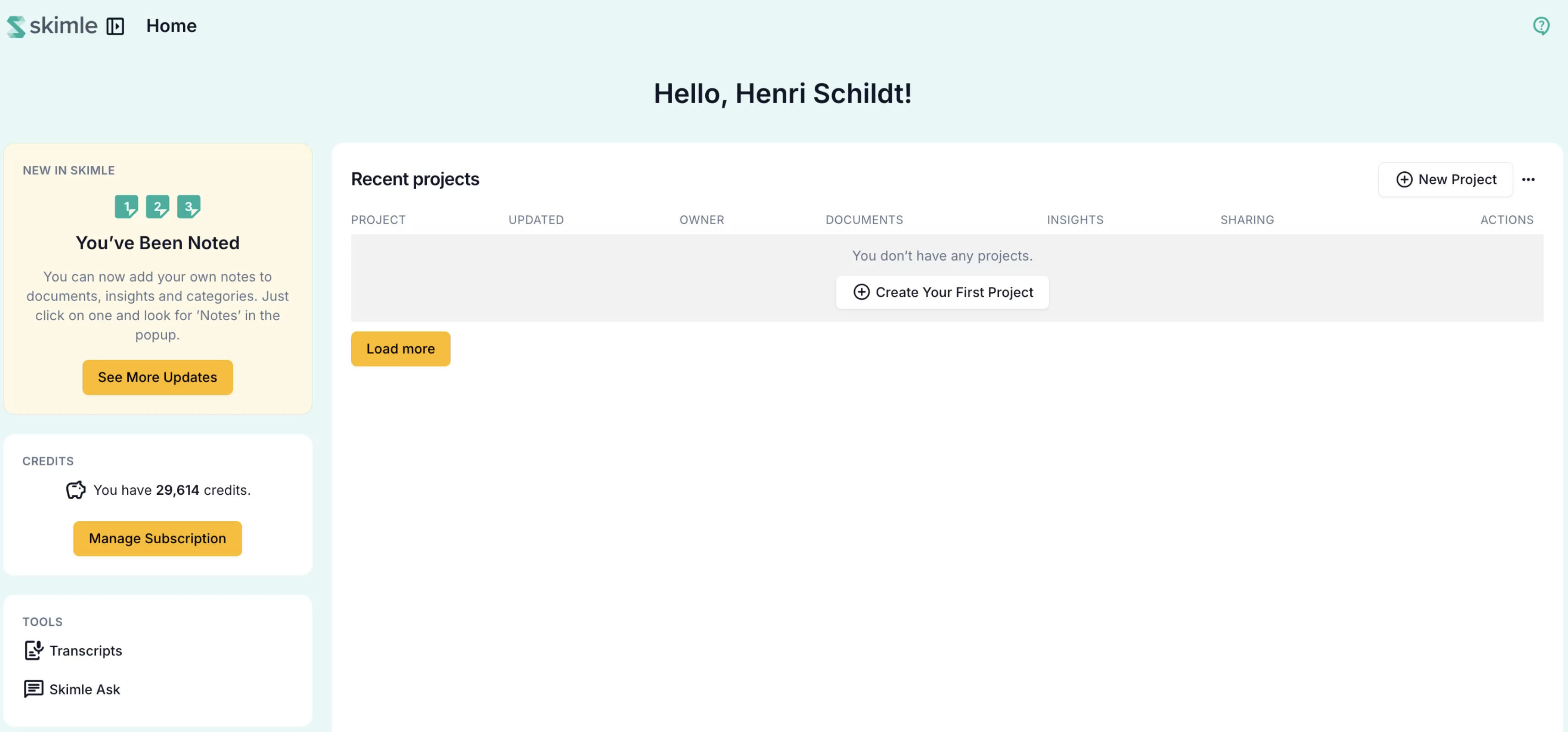
From the home screen, click the New Project button in the top right corner.
You will be asked to:
- Name your project — choose a descriptive name so you can find it easily later.
- Choose the output language — this sets the language used for category labels, summaries, and analysis results. Your source documents can be in any language — the language choice only defines the output.
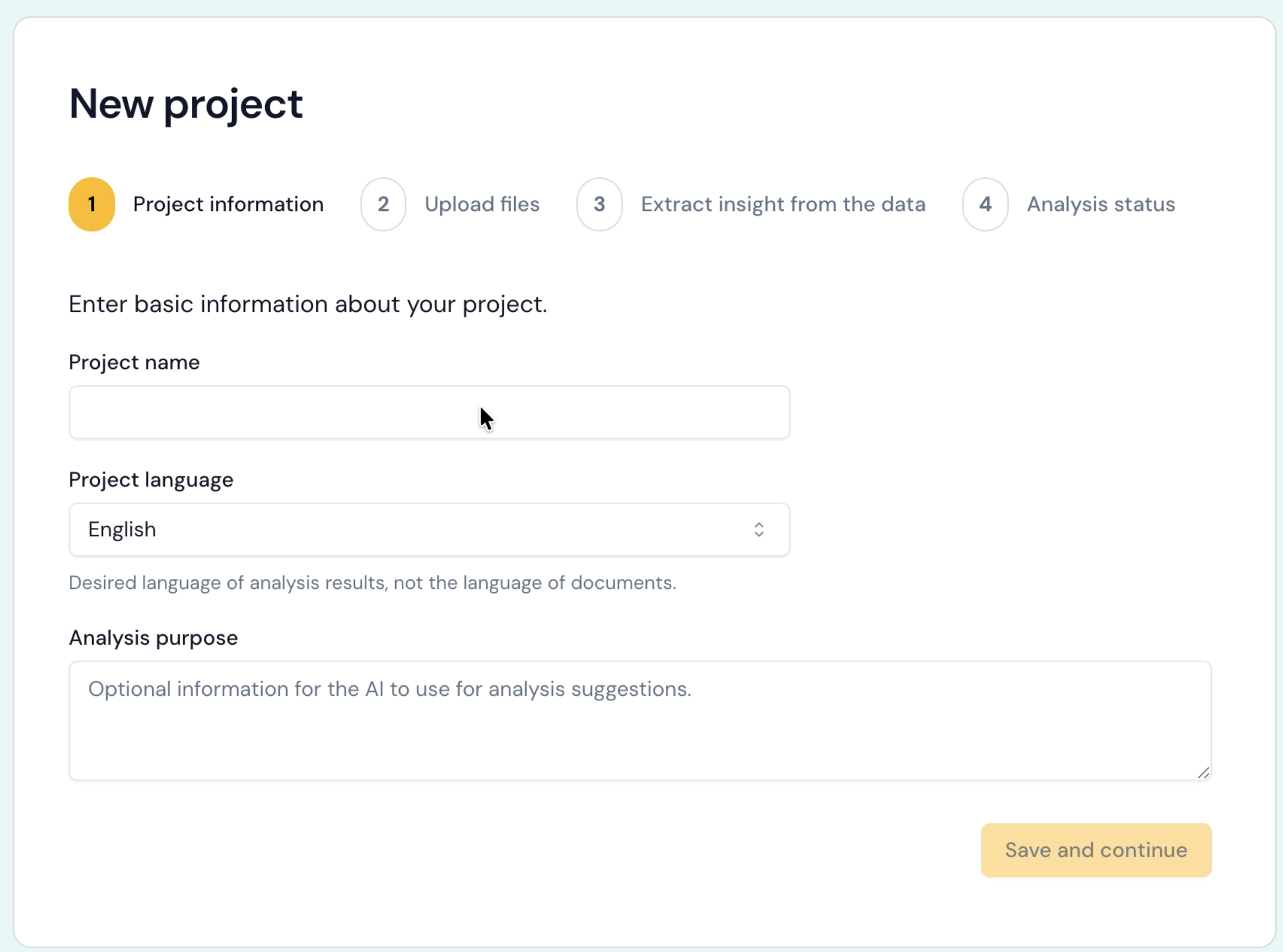
The analysis purpose is optional guidance for some AI functionalities, and it is generally not needed. We know that the purpose of analysis can be ambiguous sometimes and change over time!
Add a data source
Once your project exists, you land in Data sources. A data source is a collection of files or survey responses that you add to the project and analyse together. Click New data source and choose the type that matches your material:
- Text documents — PDF, DOCX, RTF, or TXT files.
- Audio or video — recordings that Skimle transcribes and analyses in place.
- Tabular data — a CSV or Excel spreadsheet where each row becomes a document.
- Skimle Ask survey — an AI-conducted interview whose responses become documents.
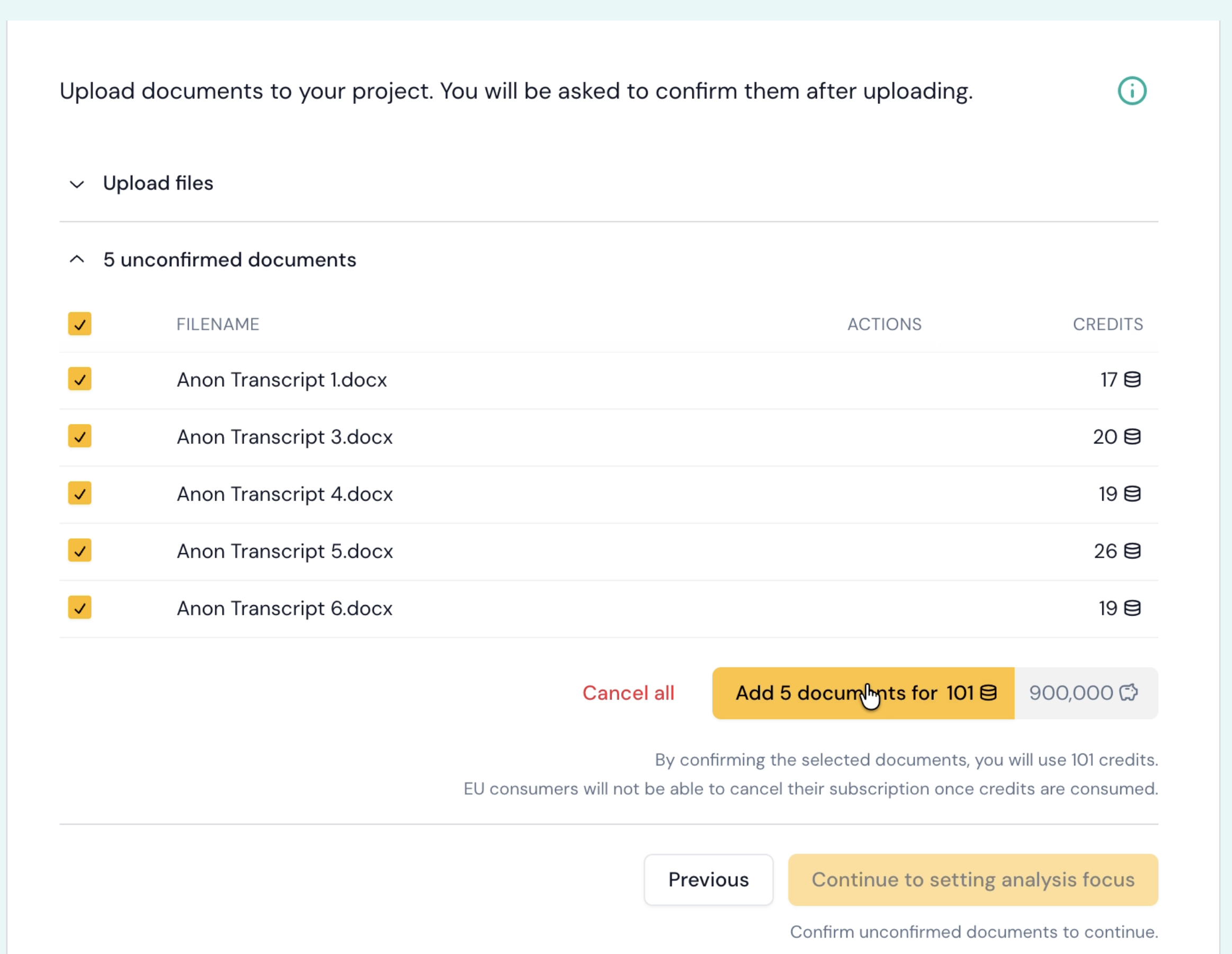
For your first project, choose Text documents and drag your files in. You can upload multiple documents at once. If you need support for other file types, please do not hesitate to contact us!
Once you have added your files, you will be asked to confirm them. At this point, you spend your first credits (see pricing for how credits work). For most projects, these are the only credits required! You can run multiple analyses for free once your documents are in the project. Each data source also carries its own settings — such as anonymisation — that you can set before confirming.
Add an analysis
Next, open the Analyses section and click New analysis to choose how Skimle should read your data.

- Automatic Thematic Analysis — Skimle reads your documents and automatically discovers themes and categories.
- Predefined Categories — You choose the categories, either your own or Skimle's suggestions, and subcategories emerge from the data.
- Agentic Analysis — Start from a research question and get back coded data plus written analytical themes.
For your first project, just choose the automatic thematic analysis. It creates a good structure based on the headings or questions in your documents. It is ideally suited for interview data.
The analysis can take a few minutes to complete, depending on the size of your documents. You will get an email with a link to the project when it is ready. In case the email goes to your junk folder, just check the Skimle home page after a while. Sometimes when we have several analyses running at the same time, your work may be queued for a while. The good news is, once the analysis is done, browsing the results is fast.
Explore your results
Once the analysis is complete, open the Explore & edit section to explore the results through several views:
- The table view gives you an immediate overview of how insights are distributed across documents and categories.
- The categories view lets you navigate the category hierarchy and read AI-generated summaries.
- The documents view shows the full text of a document with highlighted quotes.
You can also add metadata to your documents, use tags for cross-cutting classification, query your data with the AI chat, and export your results when you are ready to share them.