Creating, editing & organizing categories
How to create, edit, and organise insight categories, including how to merge, remove, and trim categories using the Edit view.
Skimle generates categories automatically during analysis, but you have full control to reorganise them afterwards. You can rename categories, move them around the hierarchy, and use the Category Editor view's powerful tools to merge similar categories, remove unwanted ones, or trim your category tree down to the essentials.
Basic category operations
You can perform common category operations directly by clicking a category to open a pop-up action panel:
- Rename a category by clicking on its name in the tree and editing inline, or via the action panel.
- Delete a category via the action panel. Note that deleting a category removes the links between its insights and the category, but does not delete the insights themselves. However, if insights do not belong to any other category, they will become invisible in most views.
The Edit view
For more advanced category management, open the Cateogry Edit view from the top menu (Edit -> Merge categories). This view displays an interactive graph where each node represents a category and the lines between them indicate semantic similarity. The graph helps you visually identify categories that overlap or could be consolidated.
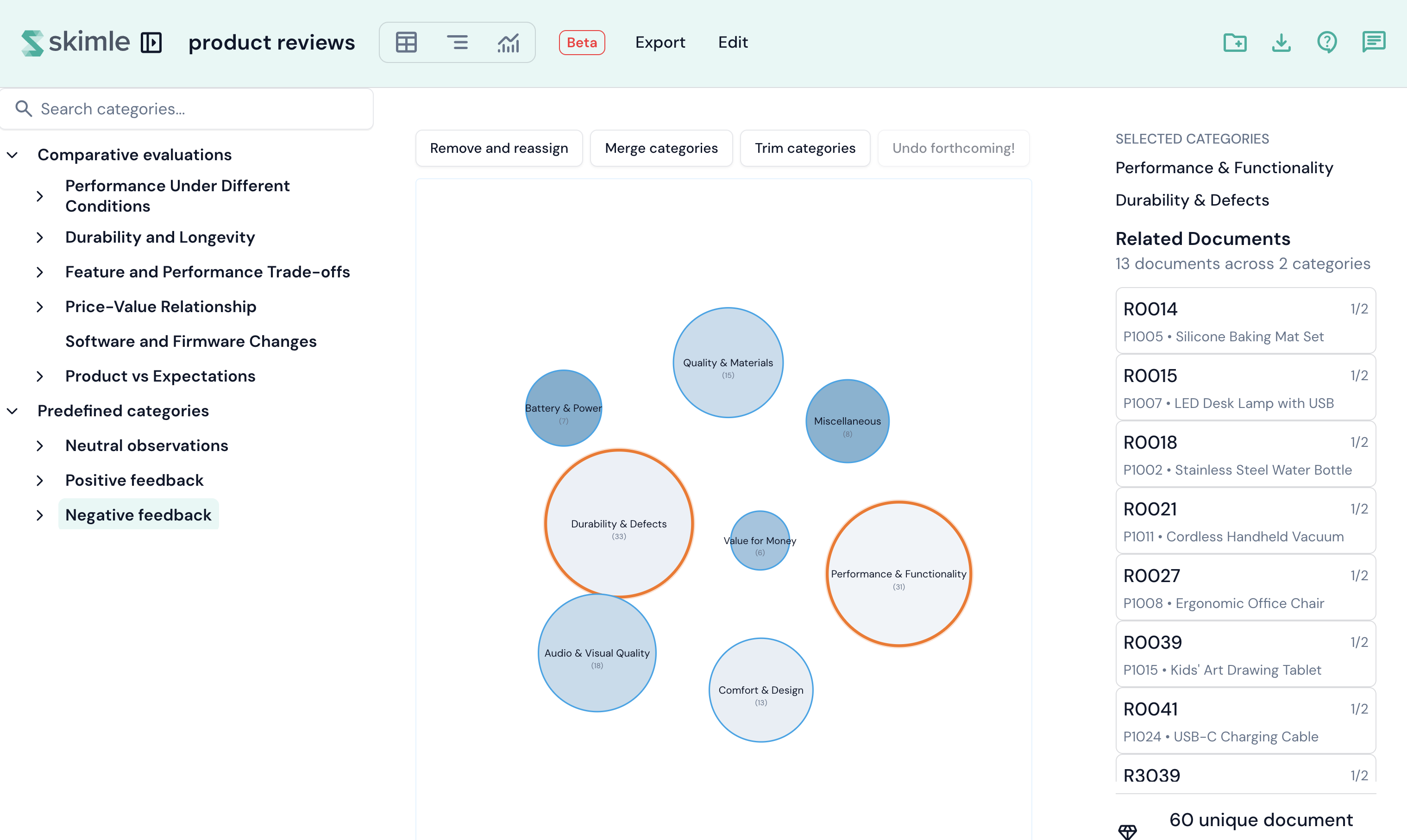
The Edit view is divided into three panels:
- Left panel — a category tree selector. Click a category to zoom into its subcategories in the graph.
- Centre panel — the interactive similarity graph with a toolbar at the top.
- Right panel — a document list showing which documents are associated with the selected categories.
Node size reflects the number of insights in each category. Node colour indicates the category's coherence score (how semantically consistent its insights are). You can click nodes in the graph to select them — selections persist across clicks, allowing you to multi-select. Click outside category circles to unselect all categories.
Toolbar actions
The toolbar provides three category editing tools:
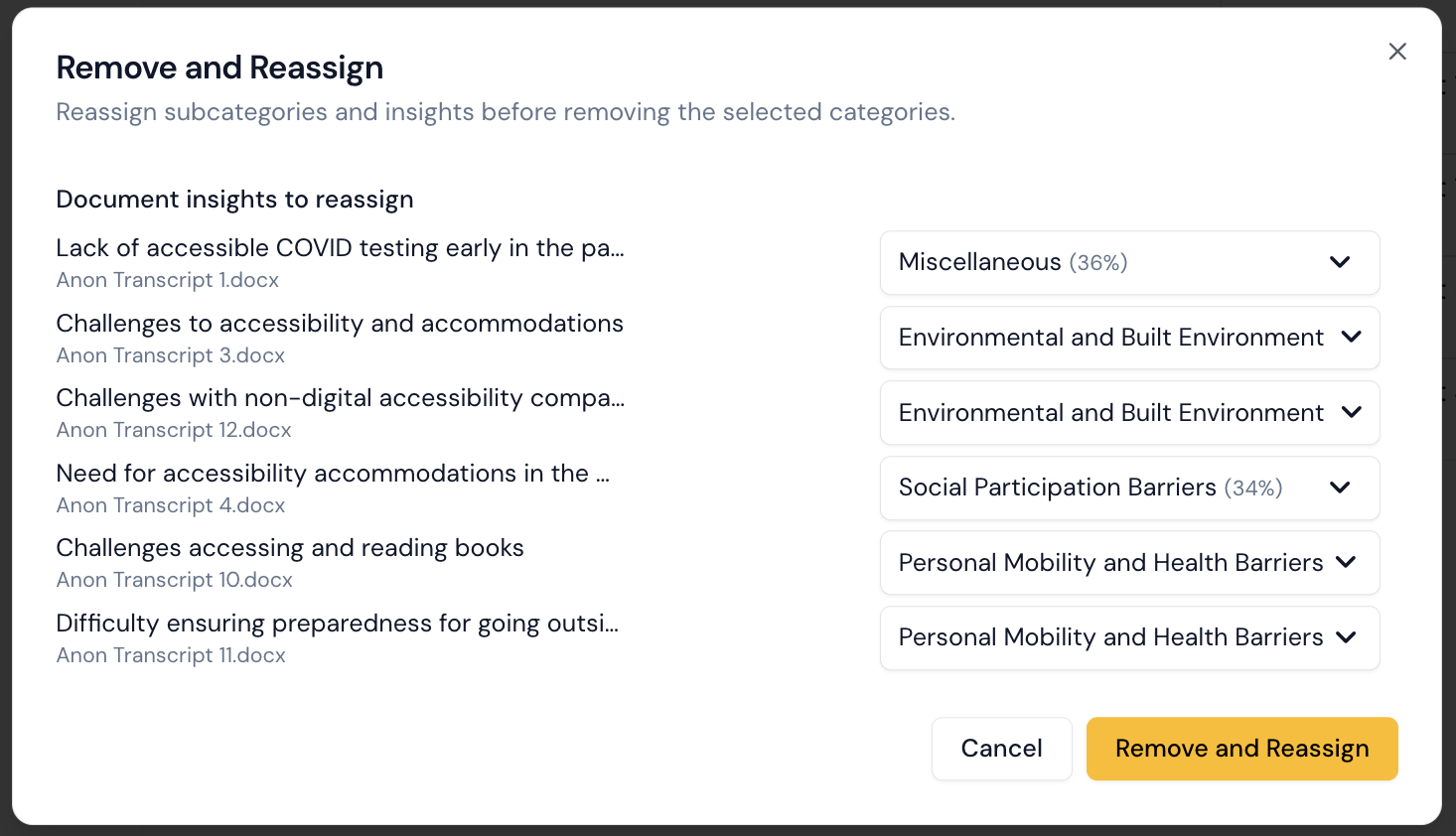
- Remove and reassign — delete selected categories and reassign their contents to other most closely related categories. After selecting this option, a dialogue will open with a list of categories and a dropdown to select the new parent category for each insight.
- Merge categories — combine two or more selected categories into one.
- Trim categories — opens a dialogue that allows you to rapidly identify and remove the "most dispensable" categories. Insights from removed categories are automatically reassigned to the closest remaining category.
Please note that undo is not yet implemented.
Merge categories
- In the Edit view, navigate to the level of the category tree that contains the categories you want to merge. Use the left-panel tree selector to drill into a parent category.
- Click the category nodes in the graph to select them. You can select two or more categories. Selected nodes are highlighted.
- Click Merge categories in the toolbar. The merge dialogue opens.
The merge dialogue
The dialogue shows:
- Categories to merge — the list of categories that will be combined. You can click on any category name to open its action panel and inspect it before proceeding.
- Suggested merge target — if you selected only one category, Skimle automatically suggests the most semantically similar category as a merge partner, showing the similarity percentage. This saves you from having to identify the best candidate yourself.
- Name for merged category — enter the name for the new combined category. Skimle automatically requests an AI-suggested name based on the categories being merged. You can accept the suggestion, edit it, or type your own name. Click Suggest to request a new AI suggestion at any time.
Once you are satisfied with the selection and name, click Merge to proceed.
What happens when you merge
- A new category is created as a sibling of the original categories (under the same parent).
- All document insights from the source categories are moved to the new category. If the same insight was linked to multiple source categories, duplicates are removed automatically.
- All memo insights are moved in the same way.
- All subcategories of the source categories are reparented under the new merged category.
- The original source categories are soft-deleted — they no longer appear in your project but are retained internally.
Remove and reassign
The remove and reassign function lets you delete one or more categories while carefully controlling where their contents go.
- Select the categories you want to remove in the graph.
- Click Remove and reassign in the toolbar.
- The dialogue lists all subcategories and insights that need a new home. For each item, a dropdown shows alternative categories sorted by semantic similarity, with the best match pre-selected.
- Review and adjust the assignments as needed. A "Miscellaneous" option is available if no existing category is a good fit.
- Click Remove and Reassign to proceed.
Trim categories
Trim is a quick way to reduce the number of categories at a given level. Skimle ranks all categories by a dispensability score that takes into account insight count, coherence, and similarity to other categories.
- Navigate to the desired level in the tree and click Trim categories in the toolbar.
- The dialogue shows all categories ranked from most essential (top) to most dispensable (bottom), with a percentage score.
- Use the minus button to mark the most dispensable category for removal, or the plus button to restore the last removed one.
- Click Trim to proceed. Contents of removed categories are automatically reassigned to their closest remaining sibling.
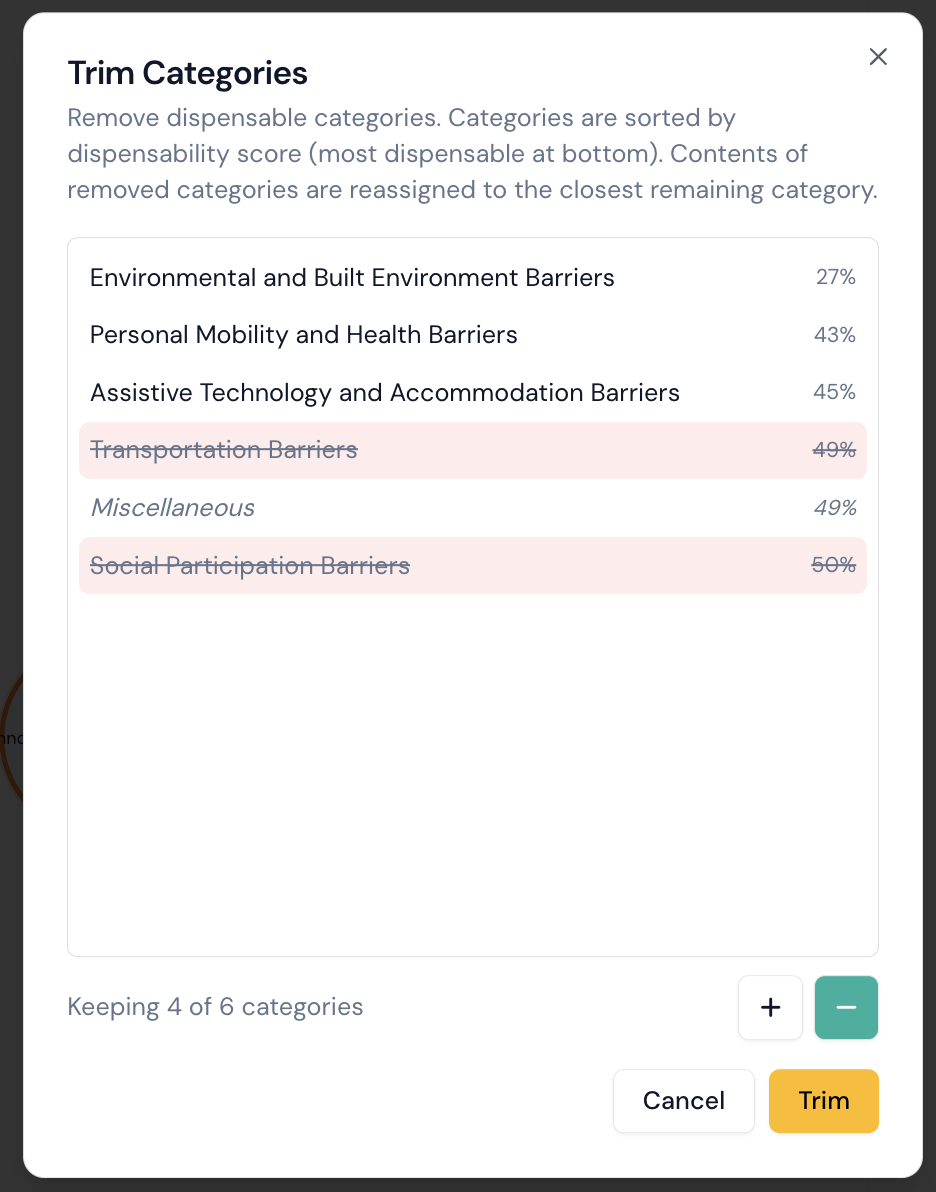 The dialogue sorts categories by dispensability score, with the most dispensable categories at the bottom. Note that Miscellaneous categories are kept.